
SCIM Integration

Learn how to configure SCIM (System for Cross-domain Identity Management) in Teamdeck to automate user provisioning and synchronization.
Teamdeck supports SCIM (System for Cross-domain Identity Management) to automate user provisioning and management from your identity provider (IdP) such as Okta, Azure AD, or OneLogin. SCIM keeps user data synchronized between your IdP and Teamdeck.
Enabling SCIM
Navigate to
Settings → Integrations.Save the SCIM integration.
After saving, Teamdeck displays a SCIM URL and Access Token in a dialog. Copy these credentials immediately—the token is shown only once.
In your IdP, configure the SCIM integration using the provided URL (formatted as
/api/{org-slug}/scim/v2) and the Bearer token.
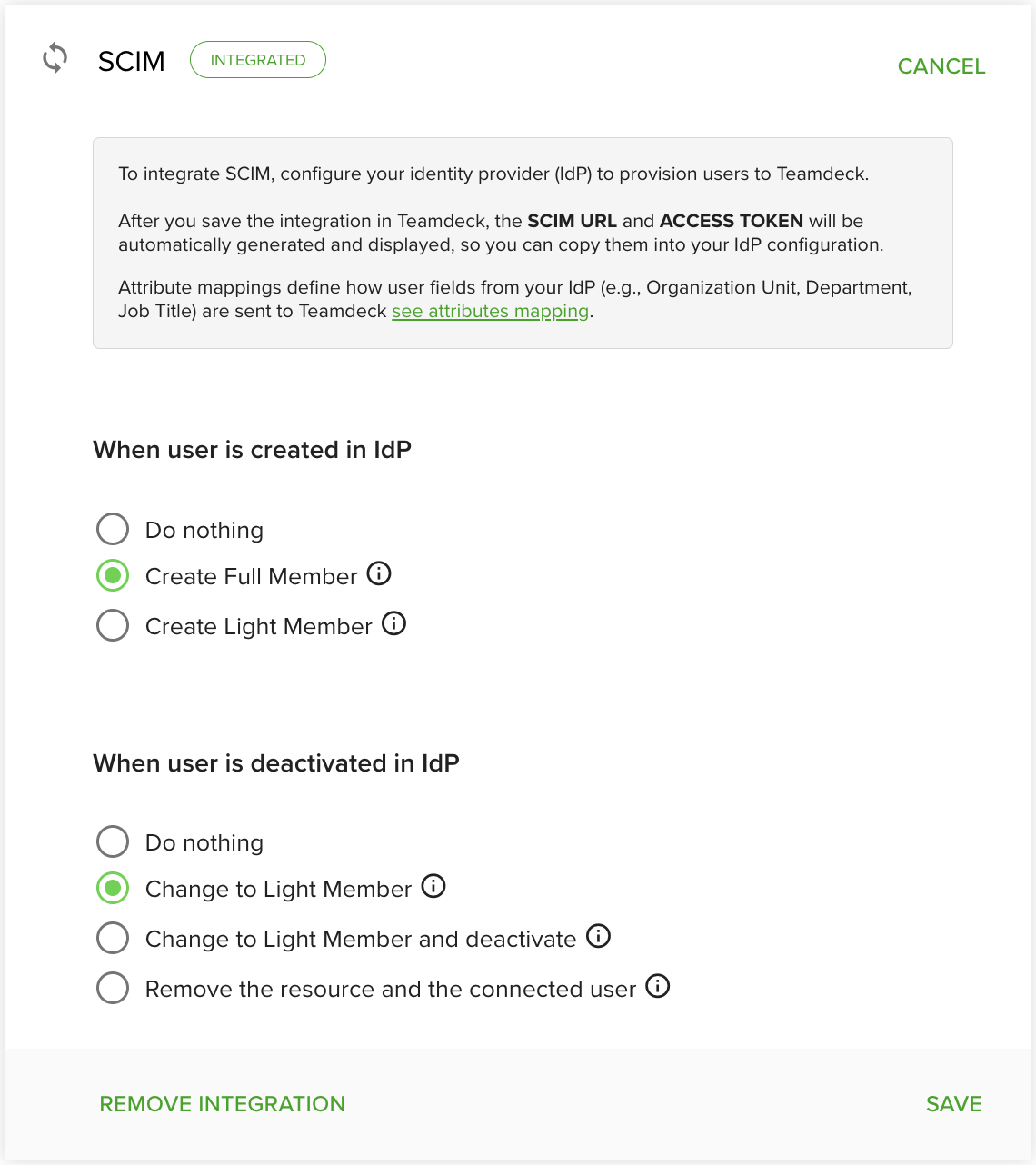
SCIM URL and Access Token dialog displayed after enabling the integration
User Provisioning Options
Configure provisioning rules in Teamdeck to control how users are created and deactivated when changes occur in your IdP.
Creating Users
When a user is created in your IdP, Teamdeck can handle it in one of three ways:
Full Member – The user is invited to the organization and visible on the Calendar.
Light Member – The user is visible on the Calendar but does not receive full access.
Do nothing – No user is created automatically in Teamdeck.
Updating Users
SCIM supports PUT and PATCH operations to keep user attributes synchronized, including name, email, and active status.
Deactivating or Deleting Users
When a user is deactivated or removed in your IdP, Teamdeck can:
Do nothing – The user remains unchanged in Teamdeck.
Change to Light Member – The user is converted to a Light Member (visible or hidden on the Calendar).
Remove membership and resource – The user is removed from the organization and their resource data is deleted.
SCIM 2.0 API Endpoints
Teamdeck implements the SCIM 2.0 protocol and provides the following endpoints:
Users endpoint – Full CRUD operations:
GET,POST,PUT,PATCH,DELETE.Filtering – Use queries such as
userName eq \"email@example.com\"to locate users.Pagination – Use
startIndexandcountparameters for paginated responses.Service Provider Config – Access
/ServiceProviderConfigfor IdP discovery and capabilities.Schemas – Access
/Schemasto retrieve the User schema.
All requests require a Bearer token in the Authorization header.
Organization Units and Custom Fields
Teamdeck supports mapping IdP attributes to organization units and custom fields.
Organization Units
Map IdP attributes to Teamdeck organization units using the teamdeck.organizationUnit extension attribute.
Custom Fields
Resource custom fields (list, text, or number types) can be provisioned via the teamdeck namespace. External attribute names are derived from the field name (for example, Job Title becomes JobTitle).
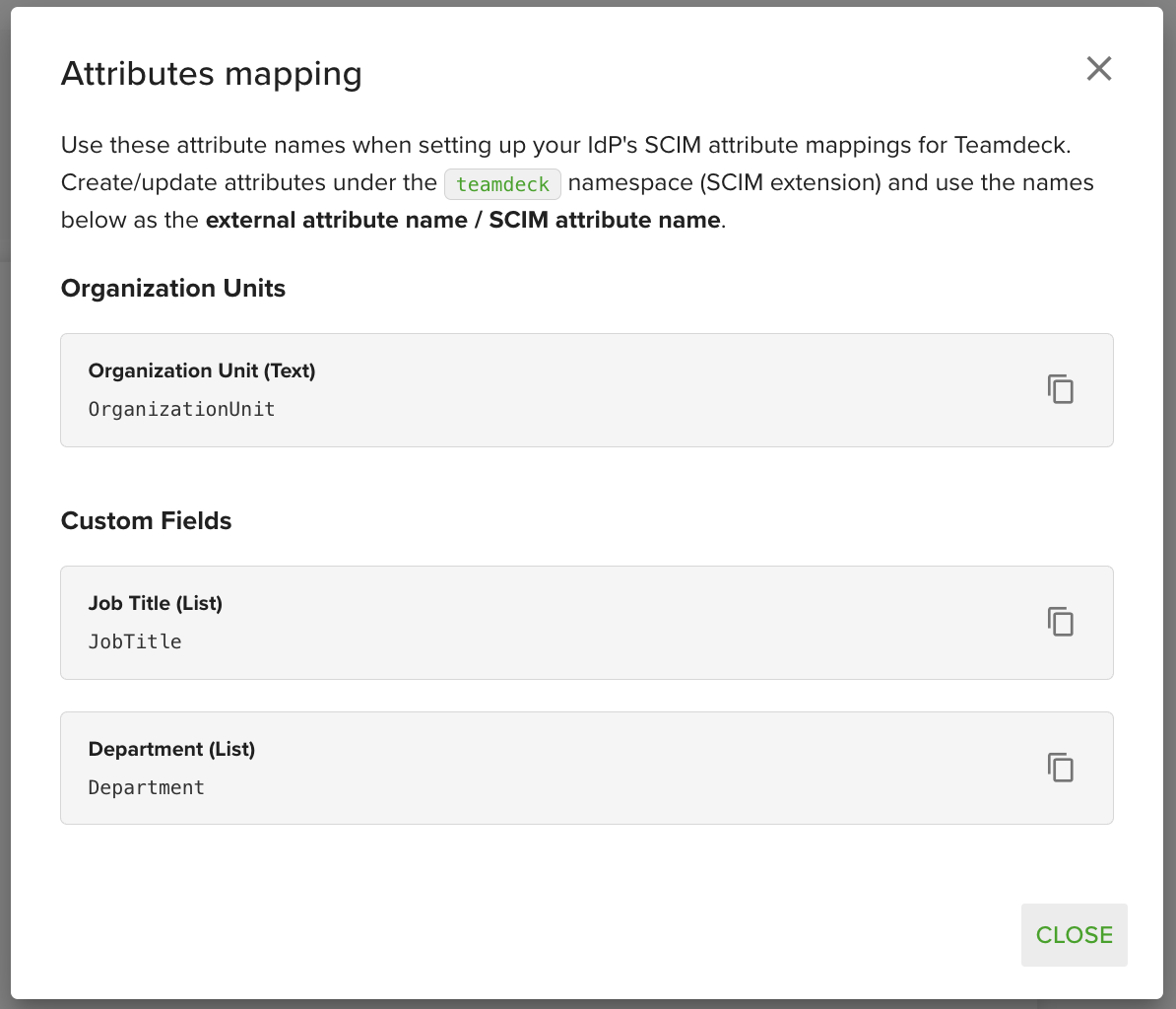
Attribute mappings dialog showing organization units and custom field names
Use the attribute mappings dialog in Teamdeck to view the exact attribute names required for your IdP configuration.
SCIM and SSO Integration
When SCIM is used together with Single Sign-On (SSO), users created as Full Members receive invitations. When the user logs in via SSO, Teamdeck automatically links the SSO identity to the invitation and completes the provisioning process.
Recommendation: If SCIM is enabled, configure Teamdeck to allow user creation only via invitation to avoid conflicts between SCIM provisioning and manual user creation.
Troubleshooting
Token not visible: The Access Token is displayed only once. If you lose it, disable and re-enable the SCIM integration to generate a new token.
User not created: Verify that the provisioning rule for user creation is set correctly and that the IdP is sending the expected attributes.
Attributes not mapping: Check the attribute mappings dialog in Teamdeck to confirm the correct names are configured in your IdP.